

Introduction
As someone who has spent years wrestling with software architecture documentation—from clunky Visio files to fragmented Miro boards—I’ll admit I was skeptical when I first heard about an AI tool that could “turn plain English into professional C4 diagrams.” The promise sounded too good to be true: describe your system, click a button, and watch a standardized, navigable architecture map appear.
But after spending two weeks testing Visual Paradigm’s AI-Powered C4 PlantUML Studio on a real-world microservices project, I’m ready to share my unfiltered experience. This isn’t a marketing brochure—it’s a hands-on review from a practitioner who needed clarity, not hype. If you’re a software architect, tech lead, or product manager tired of documentation that falls behind code, read on.
What Is This Tool, Really? (From a User’s Perspective)
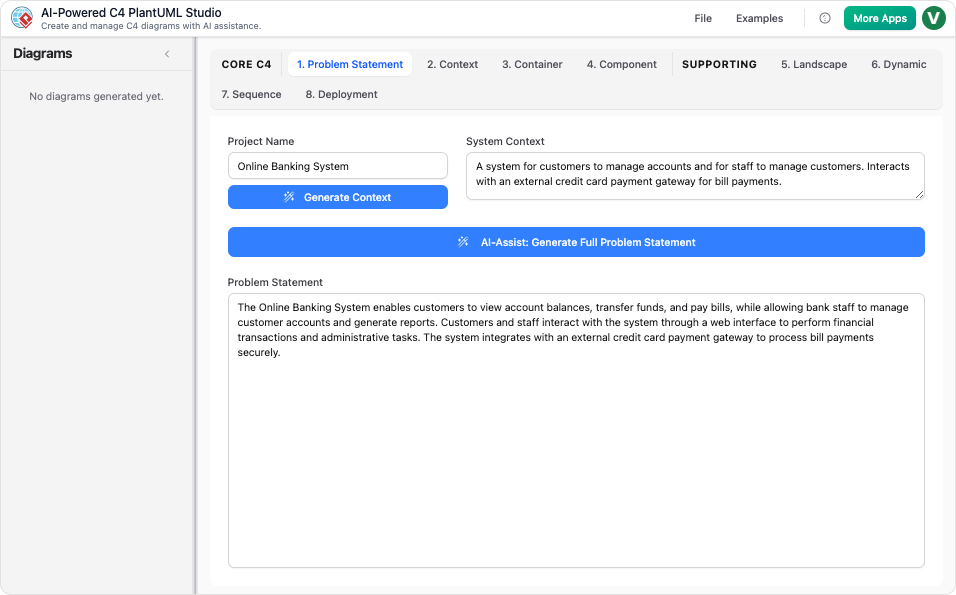
When I first landed on the AI-Powered C4 Diagram Studio dashboard, I appreciated the clean, focused interface. No overwhelming menus, no enterprise-grade complexity upfront. Just a prompt: “Describe your system in plain English.”
The tool positions itself as a bridge between informal brainstorming and formal architecture documentation. Under the hood, it leverages PlantUML—a text-based diagramming standard I’ve respected for years but never had the patience to master. The AI layer abstracts away the syntax learning curve while preserving the precision and version-control benefits of code-based diagrams.
What struck me immediately: this isn’t just another drag-and-drop canvas. It enforces the C4 Model’s hierarchical structure (Context → Container → Component → Code), gently guiding you to think about your system at the right level of abstraction.
First Impressions: Setup and Onboarding
I started a new project titled “E-Commerce Order Processing System.” Instead of staring at a blank page, I clicked the AI-Assist button to generate an initial problem statement. Within seconds, the tool drafted a coherent system context: users, external payment gateways, inventory services, and notification systems—all logically connected.
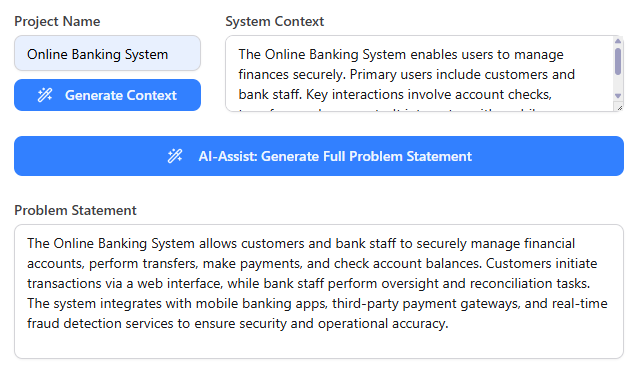

What I loved: The AI didn’t just spit out generic text. It asked clarifying questions implicitly through its output, prompting me to refine boundaries (“Is the payment service internal or third-party?”). This felt less like automation and more like a collaborative thinking partner.
Key Capabilities I Tested (And What Actually Worked)
✨ Instant Diagram Generation
I typed: “Users place orders via a web app. Orders are validated by an API gateway, processed by an order service, stored in PostgreSQL, and trigger email notifications via SendGrid.”
I clicked Generate Diagram.
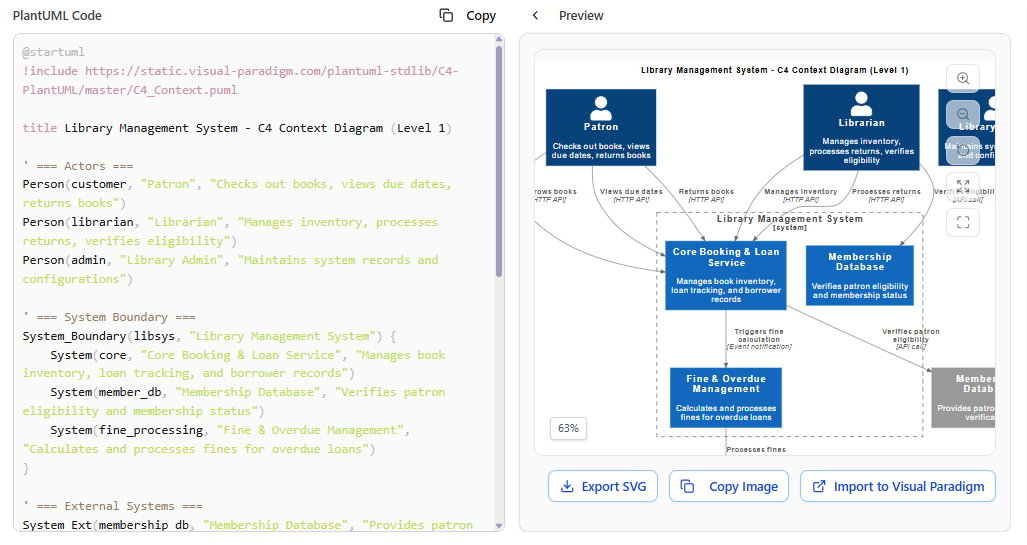
Result: A clean System Context diagram appeared in under 10 seconds, with properly labeled actors, systems, and relationships. The PlantUML code populated the left panel; the rendered preview sat side-by-side on the right.
🔁 Complete C4 Hierarchy Support
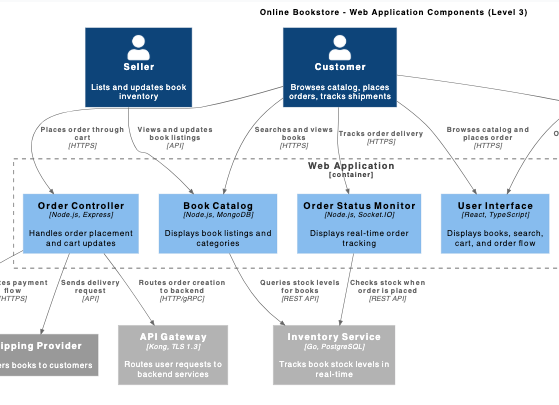
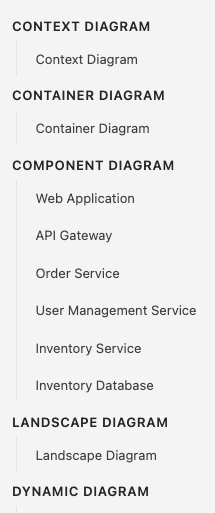
The tool didn’t stop at Level 1. Using the diagram navigator, I drilled into the “Order Service” container to auto-generate a Component Diagram. The AI preserved dependencies and naming consistency across levels—a huge time-saver I didn’t expect.
Supported views I verified:
-
Level 1 (System Context): Perfect for stakeholder alignment
-
Level 2 (Container): Great for tech lead handoffs
-
Level 3 (Component): Useful for sprint planning
-
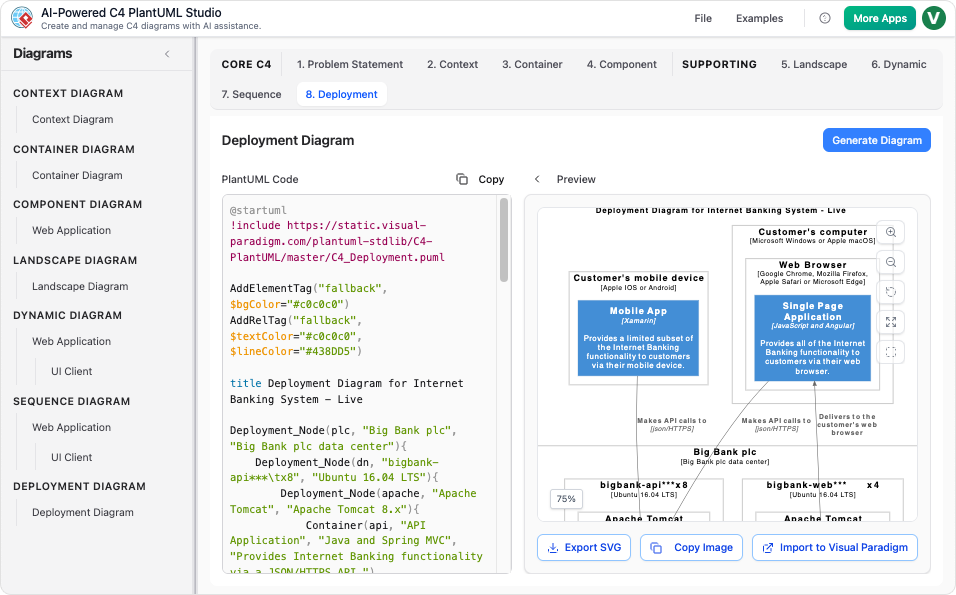
Supporting Views: I generated a Deployment Diagram to map services to AWS regions—something I’d normally build manually in Lucidchart.
💬 Conversational Editing
This feature felt like magic. I opened the chat panel and typed: “Add a Redis cache between the order service and PostgreSQL.”
The AI updated both the PlantUML code and the visual diagram instantly. No manual repositioning, no syntax debugging. I could also ask it to “rename the notification service to ‘Email Dispatcher’” or “highlight all external dependencies in red.”
🔗 Everything Stays Connected
One of my biggest pain points with traditional tools is diagram fragmentation. Here, the Interactive Navigator acts like a “deep zoom” for my architecture. Click any element to jump to its detailed view. Changes propagate upward and downward through the hierarchy.
My End-to-End Workflow (Step-by-Step)
Step 1: Define the Problem
I named my project and used AI-Assist to draft a problem statement. Even as an experienced architect, this saved me 20+ minutes of initial structuring.
Step 2: Select Diagram Type & Dependencies
The interface guided me to choose System Context first. When I later selected Component Diagram, it prompted me to pick a parent container—preventing orphaned diagrams.
Step 3: Generate, Preview, and Iterate
Clicking Generate Diagram rendered both code and visual output. I tweaked the PlantUML directly when I wanted fine-grained control (e.g., adjusting colors), but 90% of the time, the AI’s defaults were presentation-ready.
Step 4: Save, Export, and Share
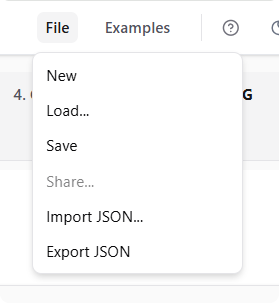
I exported the project as JSON for version control and shared a read-only link with my engineering team. The Quick Diagram Browser kept all 7 diagrams organized—no more hunting through browser tabs.
Features That Stood Out (The “Wow” Moments)
✅ No Learning Curve Required: I didn’t need to memorize PlantUML syntax or C4 notation rules. The AI handled formatting; I focused on architecture.
✅ PlantUML Under the Hood: Because diagrams are code-based, they’re inherently version-controllable. I committed the .puml files to Git alongside my microservices repo—something impossible with image-based tools.
✅ Example Gallery: Stuck on how to model an event-driven flow? The built-in reference projects gave me instant inspiration without leaving the tool.
✅ Cloud Project Management: Auto-save, version history, and team sharing worked flawlessly. I switched between my laptop and tablet seamlessly.
Who Would Benefit Most? (Based on My Experience)
🎯 Software Architects & Tech Leads: Define and socialize architectural vision without drowning in manual diagramming.
🎯 Developers: Understand system structure at any depth. Keep docs synchronized with code via PlantUML exports.
🎯 Product Managers & BAs: Bridge requirements and implementation with clear, navigable visuals stakeholders actually understand.
🎯 Educators & Students: Teach C4 modeling without the syntax barrier. Produce professional diagrams in minutes, not hours.
Tips I Learned Along the Way
💡 Start broad, then drill down: Let the AI generate your System Context first. Refine containers and components iteratively—don’t try to perfect everything at once.
💡 Use conversational edits for quick tweaks: Instead of editing PlantUML manually, ask the AI to “add a retry policy between service A and B”—it’s faster and less error-prone.
💡 Export early, export often: Even if you’re just prototyping, export the PlantUML code. It’s a portable artifact you can use in documentation, wikis, or CI/CD pipelines.
💡 Leverage the Example Gallery: When modeling complex patterns (e.g., CQRS, event sourcing), browse reference projects to avoid reinventing notation.
Minor Limitations to Note
⚠️ AI Isn’t Perfect: Occasionally, the generated PlantUML needed minor syntax tweaks for complex relationships. Having the code visible made this easy to fix, but beginners might still feel a slight learning curve.
⚠️ Enterprise Features Require Desktop Integration: For advanced modeling (e.g., requirements traceability, report generation), you’ll need to import diagrams into Visual Paradigm Desktop (Professional Edition).
⚠️ Internet Dependency: As a cloud-first tool, it requires a stable connection. Offline work isn’t supported in the online studio.
Conclusion: Would I Recommend It?
After putting Visual Paradigm’s AI-Powered C4 PlantUML Studio through its paces on a live project, my verdict is clear: Yes—with enthusiasm.
This tool solved real pain points I’ve battled for years: documentation drift, inconsistent notation, and the time sink of manual diagramming. By combining the rigor of the C4 Model, the precision of PlantUML, and the accessibility of generative AI, it delivers something genuinely valuable: living architecture documentation that teams actually use.
Is it perfect? No tool is. But for anyone serious about clarifying, communicating, or evolving software architecture, this studio lowers the barrier to entry while raising the ceiling for professionalism.
If you’ve ever felt that sinking feeling when your architecture diagrams are already outdated before the sprint ends—give this a try. Your future self (and your team) will thank you.
References
- C4-PlantUML Studio | Visual Paradigm: Official feature page introducing the AI-powered C4 PlantUML Studio tool and its core capabilities.
- Visual Paradigm AI x C4 System Context Diagram – YouTube: Video demonstration showing AI generating a C4 System Context diagram from plain-text input.
- C4 Model Diagram Tool: Component, Container, Context …: Overview of Visual Paradigm’s comprehensive C4 diagramming solution across all model levels.
- Visual Paradigm C4-PlantUML Studio Feature Highlight: Detailed description of how the AI transforms simple text descriptions into professional architecture diagrams.
- AI-Powered C4 PlantUML Markdown Editor Release Notes: Official release announcement with feature updates and technical details for the AI-powered editor.
- C4 Diagram Tool Solution Overview (Traditional Chinese): Regional solution page detailing C4 diagramming capabilities for Traditional Chinese-speaking users.
- Visual Paradigm AI Chatbot Features: Information about the integrated AI chatbot used for conversational diagram refinement and editing.
- About the Diagrams – AI-Powered C4 PlantUML Studio: Documentation explaining all supported diagram types and C4 model levels within the studio.
- C4 Container Diagram Generator: Standalone AI tool specifically designed for generating container-level C4 diagrams.
- C4 Container Diagram: A Definitive Guide: Comprehensive guide to creating and understanding container diagrams with AI assistance.
- C4 Component Diagram Generator: AI-powered tool for generating detailed component-level architecture diagrams.
- YouTube Demo: C4 PlantUML Studio in Action: Video walkthrough demonstrating the studio’s end-to-end workflow and key features.
- C4 System Context Diagram Generator: AI tool for creating high-level system context views showing how software fits into its environment.
- AI-Powered C4 PlantUML Studio Main Tool Page: Central hub for accessing the online C4 diagram generator with project management and export features.
- Studio Interface Screenshot: Visual overview of the main workspace layout showing the side-by-side PlantUML editor and diagram preview.
- Connected Diagrams View: Screenshot illustrating how diagrams link together in the interactive navigator for seamless navigation.
- Diagram Browser Interface: View of the quick diagram browser feature that keeps all project diagrams organized and accessible.
- Project Setup Screen: Interface showing initial project configuration and AI-assisted content generation for problem statements.
- Diagram Type Selection: Screenshot displaying the available C4 diagram options and selection workflow.
- PlantUML Code and Preview: Side-by-side view showing generated PlantUML code alongside the rendered diagram preview.
- Export and Sharing Options: Interface demonstrating saving, exporting, and sharing capabilities for completed diagrams and projects.
- Visual Paradigm UI Separator: Decorative UI element from the official Visual Paradigm feature page.
- Studio Hero Image: Promotional screenshot showcasing the AI-powered workflow from idea to interactive architecture overview.