


Introduction
As someone who has spent countless hours wrestling with diagramming tools—dragging shapes, aligning connectors, and tweaking layouts—I was skeptical when I first heard about an AI that could generate professional diagrams from simple text prompts. Like many architects, developers, and product strategists, I needed a solution that respected my time without sacrificing precision. After testing Visual Paradigm’s AI-powered visual modeling chatbot across several real-world projects, I’m sharing my honest, third-party perspective on whether this tool truly delivers on its promise to transform how we visualize complex systems.
The World’s Leading AI-Powered Visual Modeling Chatbot: A User’s First Impression
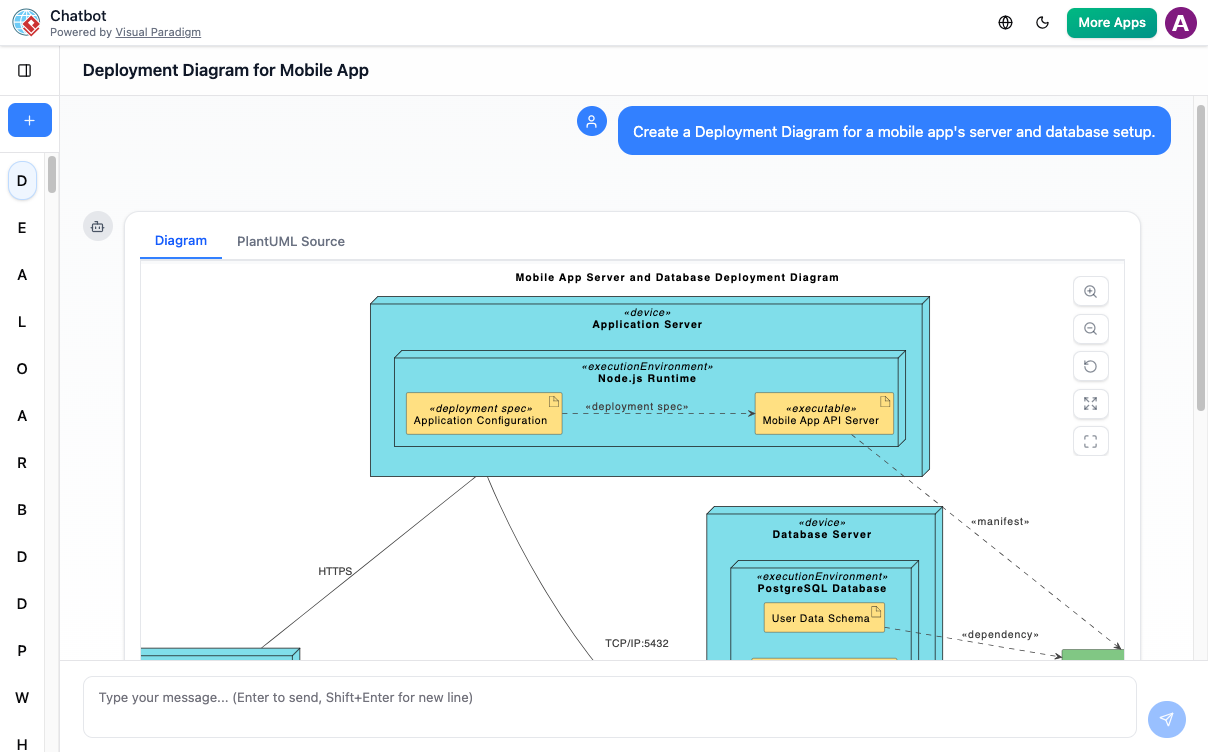
When I first landed on the AI Toolbox interface, the value proposition was clear: describe your idea in plain language, and watch a complete diagram appear. I tested it with a prompt I use frequently: “Create a deployment diagram for a cloud-based microservices architecture with API gateway, user service, and PostgreSQL database.” Within seconds, the AI generated a structured, standards-compliant diagram. No template hunting. No manual connector adjustments. For someone who values architectural clarity over tool mastery, this was immediately compelling.
Your Creative Co-Pilot for Visuals: Features Experienced Through Real Workflows
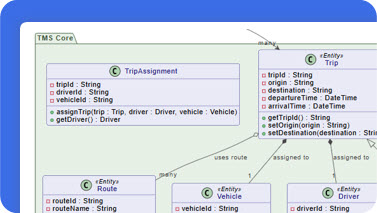
Instant Diagram Generation
In my experience, the blank-canvas problem is real. This feature eliminates it. Whether drafting a use case for stakeholder alignment or mapping a sequence flow for engineering handoff, typing a clear prompt yields a presentation-ready starting point. The AI doesn’t just draw boxes—it infers relationships, applies appropriate stereotypes, and respects diagramming conventions.
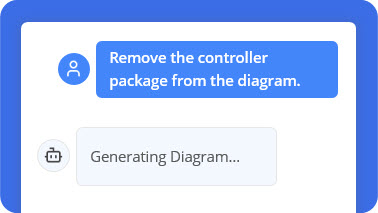
Edit with Simple Commands
What surprised me most was the conversational editing. Instead of hunting through menus to rename an actor or add a new component, I simply typed: “Change ‘User’ to ‘Customer’” or “Add a Redis cache layer between API gateway and user service.” The AI interpreted the intent and updated the visual model instantly. This felt less like using software and more like collaborating with a knowledgeable colleague.
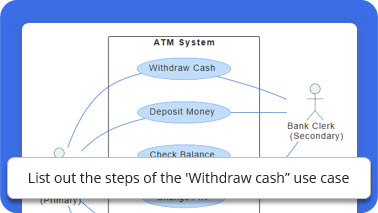
Ask Your Diagram Anything
I tested this by uploading a generated use case diagram and asking: “What are the primary actor goals?” and “Explain the error handling flow.” The chatbot provided contextual, diagram-aware responses. This transforms static visuals into interactive knowledge assets—particularly valuable during design reviews or onboarding sessions.
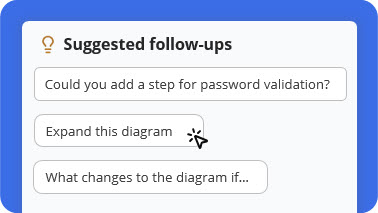
Never Lose Your Train of Thought
During iterative design sessions, the AI’s contextual suggestions helped me explore edge cases I might have overlooked. When modeling an e-commerce flow, it proactively suggested: “Consider adding a payment failure retry mechanism” or “Should inventory reservation be part of this sequence?” These prompts kept my thinking structured without interrupting creative flow.
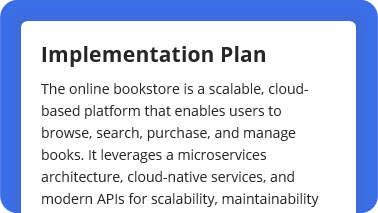
Documentation on Demand
One of the most time-saving features I experienced was generating documentation directly from diagrams. With a command like “Create a one-page technical summary for this deployment diagram,” the AI produced a well-structured report with component descriptions, interaction notes, and deployment considerations. This bridges the persistent gap between design artifacts and stakeholder communication.
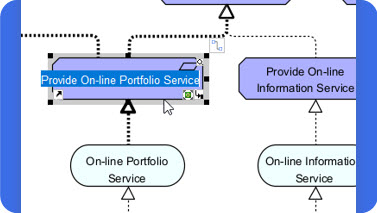
From AI to Pro Tool
When I needed advanced modeling capabilities—like version control integration or team collaboration—I exported the AI-generated diagram directly into the Visual Paradigm desktop application. The transition was seamless: all elements, relationships, and metadata preserved. This workflow respects both rapid prototyping and enterprise-grade modeling needs.
How It Works: My Step-by-Step Experience

1. Describe Your Idea
I started with: “Create a use case diagram for an online shopping system.” The AI parsed the domain, identified key actors (Customer, Admin, Payment Gateway), and mapped core use cases (Browse Products, Place Order, Process Payment). No syntax learning curve—just natural language.

2. Generate Your Diagram Instantly
Within 10–15 seconds, a clean, standards-compliant diagram appeared. The layout was logical, labels were clear, and relationships followed UML conventions. For time-sensitive deliverables, this speed is transformative.

3. Refine with Simple Commands
Iteration is where the tool shines. Commands like “Add guest checkout flow” or “Make ‘Process Payment’ include ‘Validate Card’” were executed accurately. The AI maintained diagram integrity while incorporating changes—something manual editing often compromises.

4. Explore, Document, and Share
Finally, I used the chatbot to generate a stakeholder summary and exported the diagram for team review. The ability to move from concept to shareable artifact in one session significantly compressed my design cycle.
Unmatched AI Diagramming Support: What I Could Actually Create
The breadth of supported diagram types impressed me during exploration. Whether working on software architecture, business strategy, or systems engineering, I found relevant templates:
All | Business & Enterprise | C4 | General | Software Engineering | SysML
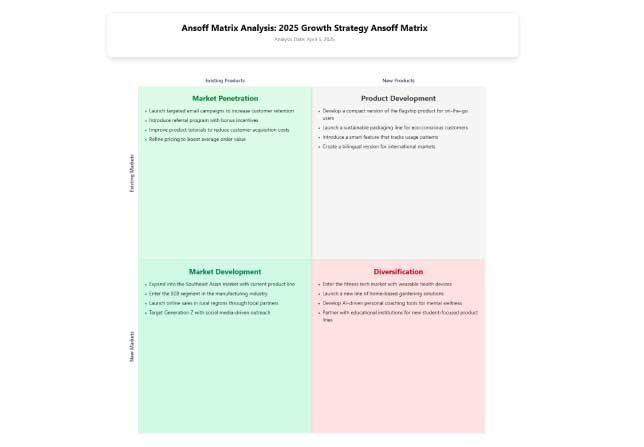
Ansoff Matrix
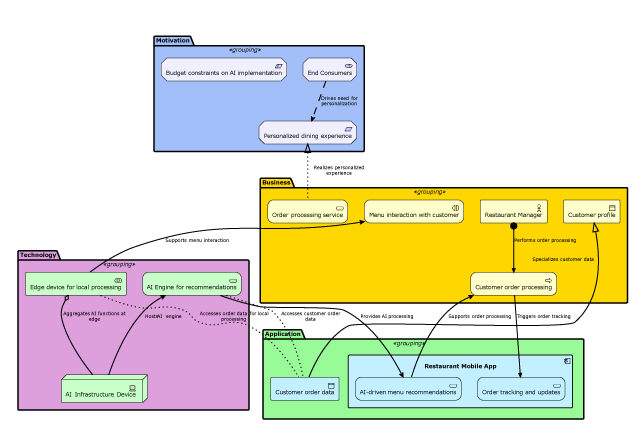
ArchiMate Diagram
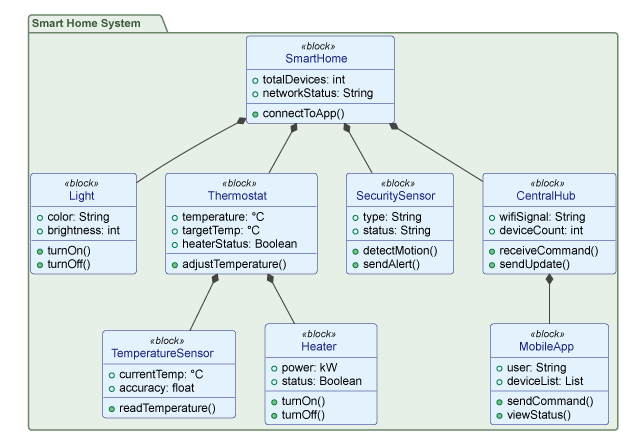
Block Definition Diagram
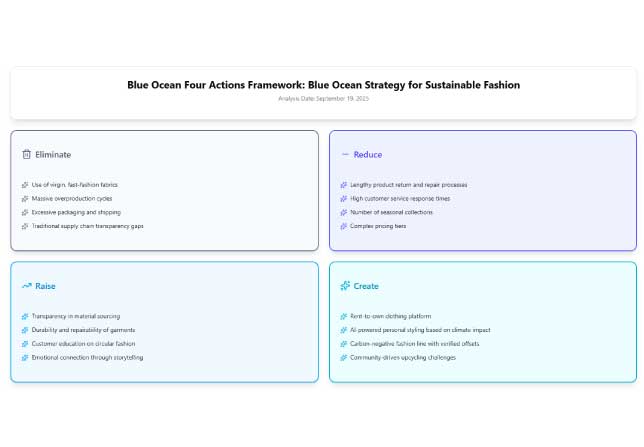
Blue Ocean Four Actions Framework
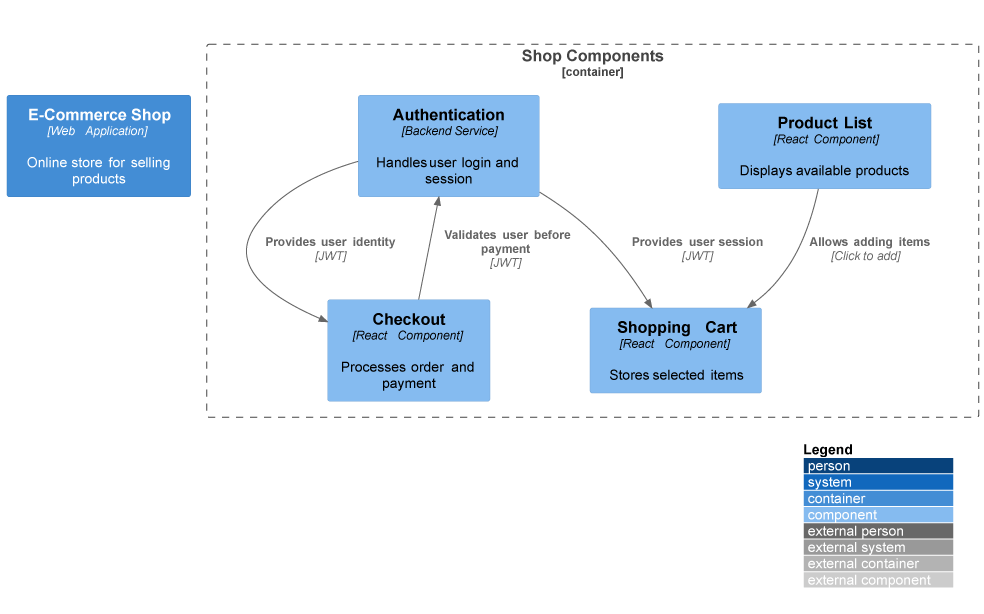
C4 Component Diagram
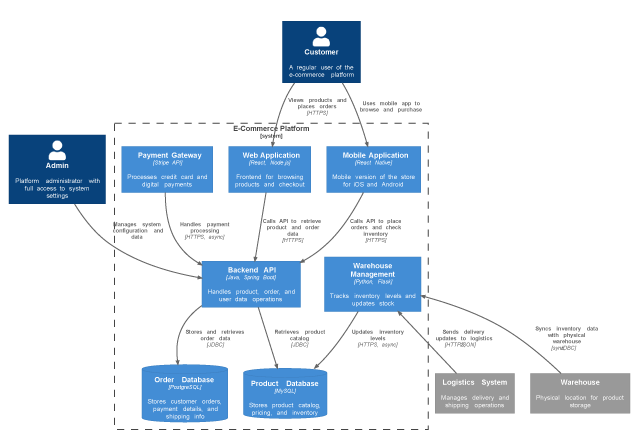
C4 Container Diagram
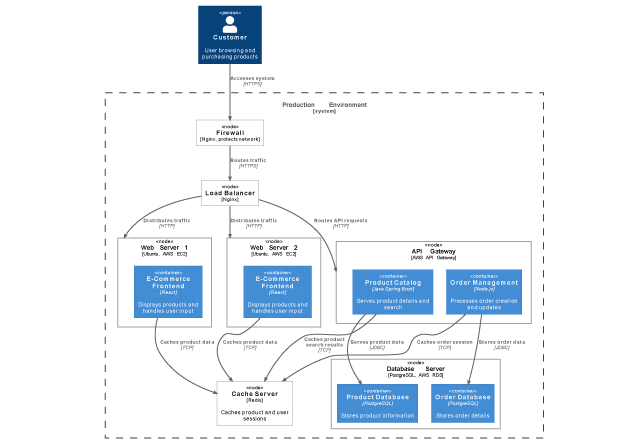
C4 Deployment Diagram
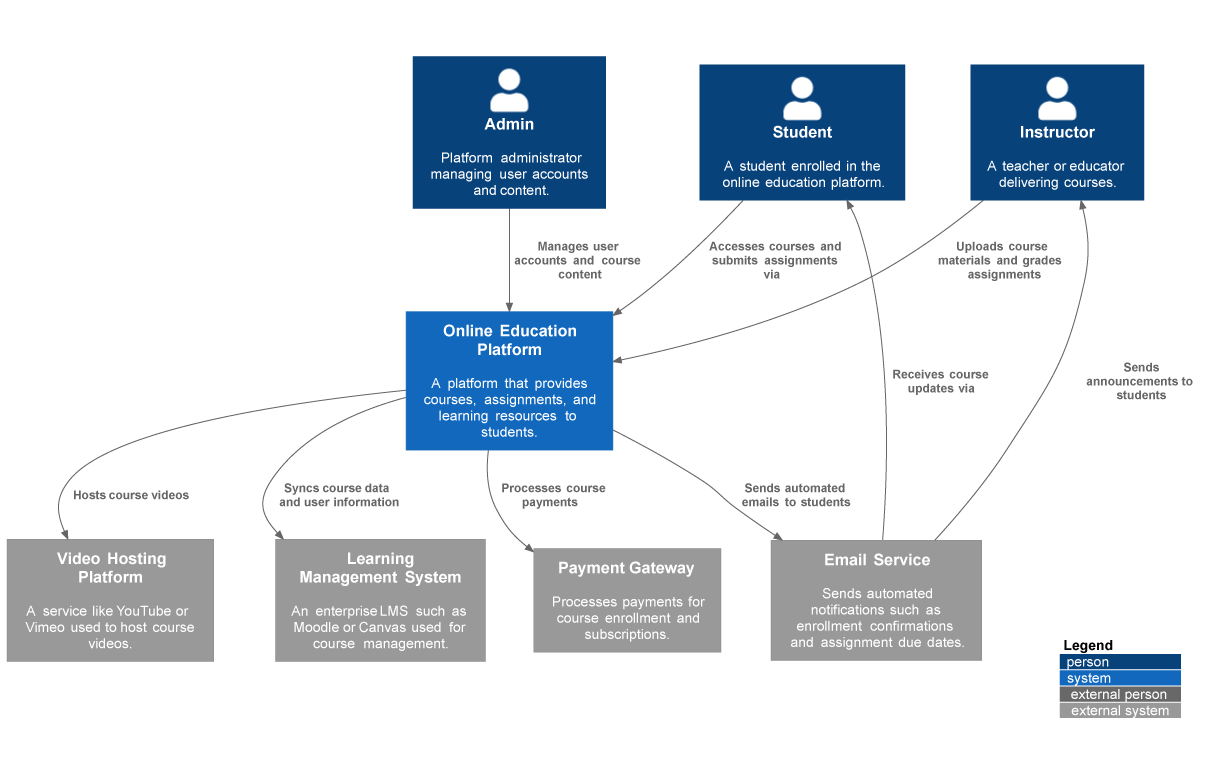
In practice, I used C4 diagrams for system context discussions with non-technical stakeholders and SysML models for requirements traceability in engineering projects. The AI’s ability to switch contexts without retraining was a major efficiency gain.
What Other Professionals Report: Community Insights
Reading user testimonials helped me gauge real-world applicability:
“I used to spend hours sketching system contexts. Now I can focus on architecture decisions while the AI handles the drawing.”
— Maria Thompson, Solution Architect
“Turning diagrams into reports with one command saves me hours during project reviews and makes my workflow much more efficient.”
— Daniel Rivera, Project Manager
“I asked for a ‘deployment diagram for a cloud-based CRM,’ and it delivered exactly what I imagined. The accuracy blew me away.”
— Liam Park, Cloud Architect
“As a startup founder, I use it to brainstorm product ideas visually. It helps me turn thoughts into structured business models fast.”
— Aisha Khan, Founder & CEO
These accounts align with my experience: the tool excels at accelerating the “idea to visual” pipeline while maintaining professional output quality.
Questions I Had (and Answers I Found)
Q1. What types of diagrams can I create?
The AI supports UML (Class, Sequence, Use Case, etc.), C4 models, SysML, ArchiMate, and business frameworks (SWOT, PESTLE, Ansoff). I verified this by generating samples across categories—coverage is genuinely comprehensive.
Q2. How does the text-to-diagram feature work?
Natural language processing interprets your prompt, maps entities to diagram elements, applies layout algorithms, and renders a standards-compliant visual. No coding or syntax required.
Q3. Can I edit the diagrams created by the AI?
Yes—through conversational commands. I successfully renamed elements, added relationships, and adjusted attributes using plain English.
Q4. How can I collaborate with my team on these diagrams?
Export to Visual Paradigm desktop for advanced collaboration features like version history, comments, and role-based permissions.
Q5. Is the data I enter into the AI secure?
Visual Paradigm states that enterprise-grade security protocols protect user inputs. For sensitive projects, I recommend reviewing their privacy policy and considering on-premise deployment options.
Q6. How accurate are the AI-generated diagrams?
In my testing, accuracy was high for well-scoped prompts. Ambiguous requests sometimes required clarification—but the iterative chat interface made refinement straightforward.
Q7. Can the AI help me learn about diagramming standards?
Absolutely. When I asked, “What makes a valid sequence diagram?” the chatbot explained lifelines, activation bars, and message types with examples. It’s a practical learning aid.
My Personal Workflow Integration: Where This Tool Fits
After several weeks of use, I’ve integrated the AI chatbot into three key scenarios:
-
Rapid Prototyping: Drafting initial architecture visuals during discovery sessions.
-
Stakeholder Communication: Generating clean diagrams and summaries for non-technical audiences.
-
Documentation Acceleration: Converting approved models into project reports with minimal manual effort.
The tool doesn’t replace deep modeling expertise—but it dramatically reduces the friction between thinking and visualizing. For teams balancing speed and precision, that balance is invaluable.
Conclusion
Visual Paradigm’s AI-powered visual modeling chatbot isn’t just another diagramming shortcut—it’s a paradigm shift in how we externalize complex ideas. From my third-party perspective, its strengths lie in: reducing time-to-visual, maintaining standards compliance, enabling conversational refinement, and bridging design with documentation. Limitations include occasional ambiguity handling and the need for clear prompt crafting—but these are minor compared to the productivity gains.
For architects, developers, product managers, and strategists who regularly translate abstract concepts into visual models, this tool warrants serious consideration. It won’t replace your expertise, but it will amplify your impact. If you’re tired of wrestling with canvas tools and ready to focus on what matters—your ideas—this AI co-pilot might be exactly what your workflow needs.
References
- Visual Paradigm AI Chatbot Features: Official overview of AI chatbot capabilities for visual modeling and diagram generation.
- Unlock Your Team’s Potential: The Complete Guide to Visual Paradigm AI Chatbot: Third-party guide exploring team adoption strategies and workflow integration tips.
- Visual Paradigm AI Chatbot Interface: Direct access to the conversational AI tool for generating and editing diagrams via natural language.
- Turn Your Ideas into Diagrams Instantly: Blog post detailing real-world use cases and prompt engineering best practices.
- AI Chatbot Enhancements: Use Case Diagram Improvements: Release notes covering recent accuracy and usability upgrades for use case modeling.
- AI Diagram Generation Demo Video: Short tutorial demonstrating text-to-diagram workflow and editing commands.
- How to Turn Requirements into Diagrams with an AI Chatbot: Practical guide for converting textual requirements into visual models using AI assistance.
- Guide to Powered UML Diagram Generation: In-app documentation for leveraging AI to create standards-compliant UML diagrams.
- SysML Requirement Diagram Tutorial: Video walkthrough of generating systems engineering models via conversational AI.
- Composite Structure Diagram AI Generation: Demonstration of advanced UML diagram creation using natural language prompts.
- Generate UML Sequence Diagrams Instantly with AI: Focused article on accelerating sequence diagram creation for behavioral modeling.
- Enhanced AI Composite Structure Diagram Generation: Technical update on improved support for complex structural modeling.
- AI Diagram to OpenDocs Pipeline: Feature announcement for seamless export of AI-generated diagrams to documentation workflows.