

Introduction
In today’s fast-paced development environments, finding a documentation tool that actually sticks—rather than becoming another forgotten tab—is a genuine challenge. After spending several weeks testing OpenDocs by Visual Paradigm across personal projects and small team workflows, this review shares an unfiltered, third-party perspective on what the platform delivers, where it shines, and where teams might need to temper expectations. Unlike vendor-produced marketing copy, this guide reflects real-world usage patterns, practical workflows, and honest trade-offs observed during hands-on evaluation. Whether you’re a solo technical writer, a startup engineering lead, or part of a distributed product team, read on to discover if OpenDocs truly earns a spot in your documentation stack.
First Impressions: Onboarding and Interface
Upon launching OpenDocs via the web app, users are greeted with a clean, minimalist welcome screen that prioritizes recent projects and quick-start actions. There’s no overwhelming dashboard or feature bombardment—just a straightforward path to create your first page. For reviewers accustomed to cluttered SaaS onboarding flows, this restraint feels refreshing.
Core Workflows: What Users Actually Do Day-to-Day
Structuring Knowledge with Folders
One of the first tasks any documentation platform must handle well is organization. OpenDocs employs a familiar tree-view sidebar where users can create nested folders, drag-and-drop pages, and visually restructure their knowledge base. In practice, this mirrors how teams naturally think about project hierarchies—by feature, sprint, or domain—without requiring complex tagging systems.
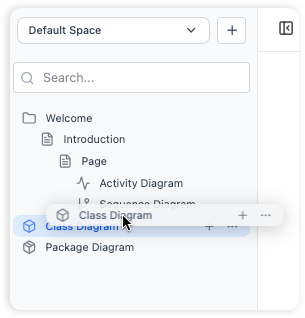
Organization: Organize your documents and diagrams in a familiar tree-like structure with nested folders.
User observation: The drag-and-drop functionality is smooth and responsive, though power users may miss keyboard shortcuts for bulk reorganization. Still, for most teams, the visual approach reduces cognitive load and accelerates onboarding for new members.
Writing with the Rich Editor
The editor supports all standard syntax—headings, code blocks, tables, task lists—with a live preview pane that renders formatting instantly.
Creating Diagrams Without Leaving the Page
Perhaps OpenDocs’ most distinctive capability is its integrated diagram editor. Rather than exporting to Visio, Lucidchart, or draw.io, users can insert flowcharts, UML diagrams, or mind maps directly alongside their text.
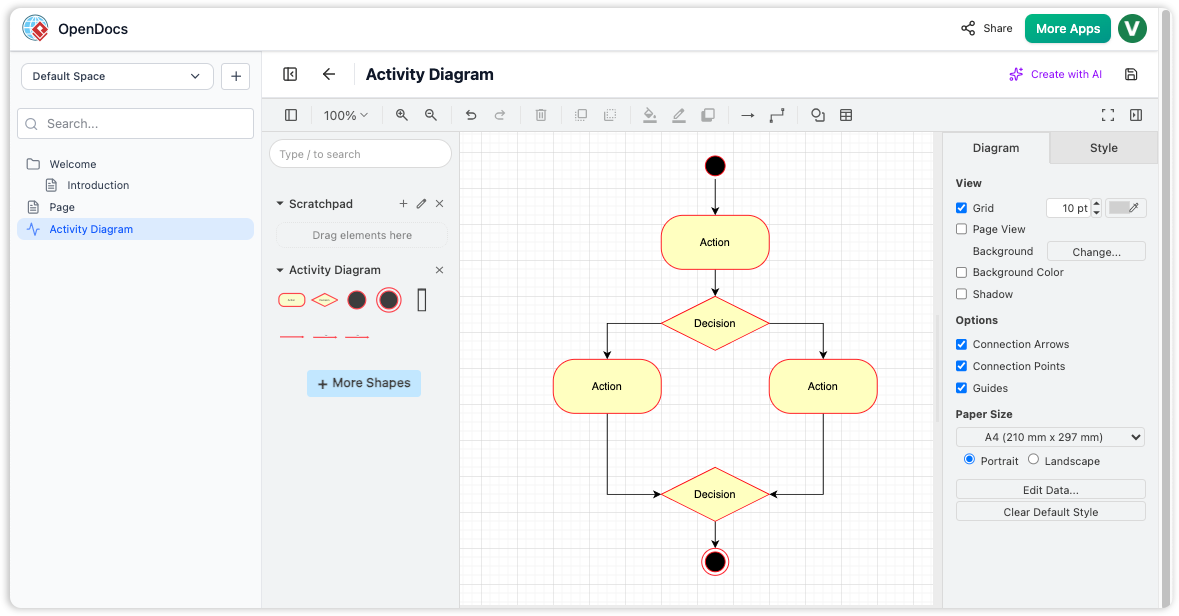
OpenDocs interface showing the integrated diagram editor with a sample Activity Diagram featuring actions, decisions, and flow connectors.
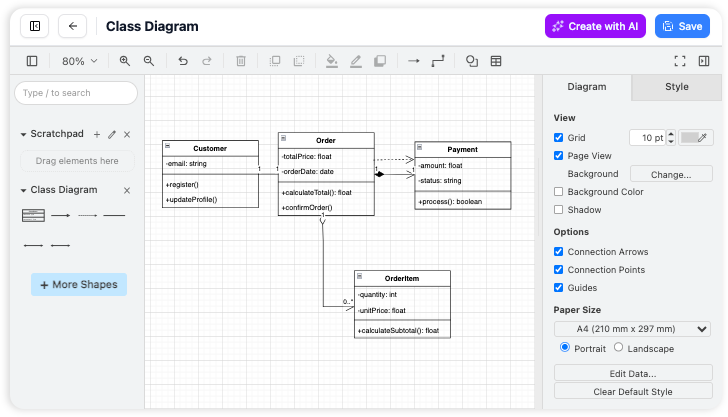
Opendocs built in diagram editor
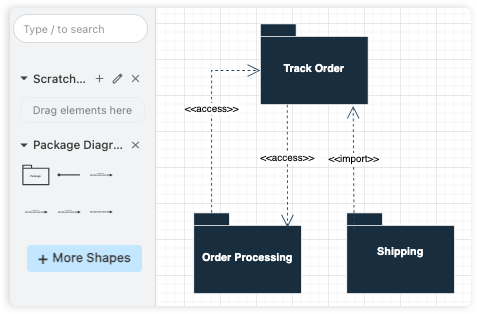
Diagram Editing: Create a wide variety of diagrams directly within OpenDocs.
Hands-on insight: The shape library is comprehensive, and connectors snap intelligently. For teams documenting system architectures or user journeys, this eliminates the frustrating context-switching that typically fragments documentation workflows.
The AI Advantage: From Text to Visuals in Seconds
One feature that consistently impressed during testing was AI-powered diagram generation. By typing a plain-English prompt like “Create a sequence diagram for user login with OAuth2,” the system generates a structured, editable diagram within seconds.
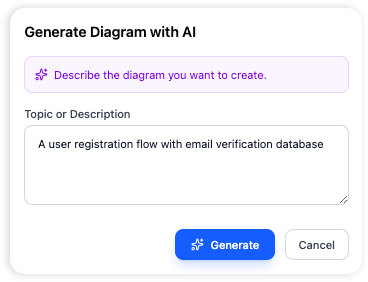
Opendocs AI generated diagram
User perspective: The AI output isn’t always perfect on the first try—complex logic may require manual refinement—but as a starting point or brainstorming aid, it dramatically accelerates the documentation process. Teams reporting tight deadlines found this capability particularly valuable for rapidly prototyping technical specs.
Collaboration and Sharing: What Teams Experience
OpenDocs enables sharing via a single, secure, read-only URL that grants access to the entire knowledge base. In practice, this simplifies stakeholder reviews: product managers, developers, and external consultants can all view the same living document without version confusion.
Observed limitation: Currently, sharing is all-or-nothing—there’s no option to share individual pages or folders. For large organizations with granular permission needs, this may require workarounds or supplementary access controls.
OpenDocs vs. Traditional Pipelines: Clarifying the Confusion
A common point of confusion arises when teams hear “pipeline” in the context of OpenDocs. It’s important to distinguish:
The primary difference is their function: OpenDocs is a collaborative documentation and knowledge management platform, whereas a pipeline is an automated workflow used in software development (CI/CD) to move code from creation to production. [1, 2, 3, 4]
Key Differences at a Glance
| Feature [1, 2, 4, 5, 6, 7, 8, 9, 10, 11, 12] | OpenDocs (by Visual Paradigm) | Software Pipeline (CI/CD) |
|---|---|---|
| Primary Goal | Centralizing knowledge and documentation. | Automating software building, testing, and deployment. |
| User Base | Teams needing a shared knowledge hub or technical specs. | Developers and DevOps engineers. |
| Core Output | Rich text documents and architectural diagrams. | Executable software or deployed applications. |
Practical takeaway: OpenDocs complements CI/CD pipelines—it doesn’t replace them. Teams using both can maintain living architecture diagrams in OpenDocs while automating deployments via Jenkins, GitHub Actions, or similar tools.
Note on “Pipeline” in OpenDocs: OpenDocs actually includes a specific feature called The Pipeline used to sync diagrams across other Visual Paradigm tools, acting as a bridge between design models and live documentation. [5, 7]
Strengths Observed in Real Usage
- All-in-One Knowledge Hub: Combining text and diagrams in a single interface reduces tool fragmentation. Users reported spending less time hunting for assets and more time refining content.
- Intuitive Organization: The hierarchical folder system scales well from personal notes to team-wide repositories.
- AI as a Productivity Multiplier: Generating diagrams from natural language prompts cuts initial drafting time significantly, especially for non-designers.
- Web-First Accessibility: No installation required; works reliably across Chrome, Firefox, and Safari on desktop and tablet.
Limitations to Consider Before Adopting
- No Direct Import/Export: Currently, users cannot bulk-import existing files or export to PDF/Word. Teams migrating from Confluence or Notion may need to manually recreate content.
- No Built-in Version History: While the platform saves changes automatically, there’s no native diff view or rollback capability. Users are advised to maintain external backups for critical documents.
- Sharing Granularity: The inability to share individual pages may pose challenges for organizations with strict information governance policies.
- Desktop App Absence: As a web-only tool, offline access isn’t supported. Teams with intermittent connectivity should plan accordingly.
Getting Started: A Realistic Onboarding Path
Based on hands-on testing, here’s a pragmatic workflow for new users:
- Launch & Initialize: Open the web app and create a new project from the welcome screen.
- Create and Name Your First Page: Use the sidebar’s “New Page” button and assign a clear, searchable title.
- Write and Format Content: Begin writing with rich formats; use the live preview to validate formatting.
- Generate Visual Diagrams: Click “New Diagram” and experiment with AI prompts or manual editing to complement your text.
- Organize with Folders: Group related pages into folders early to establish a scalable structure.
Frequently Asked Questions (From a User’s Lens)
Can I import existing documents into OpenDocs?
OpenDocs is designed for creating content within the application. Currently, there is no direct import feature for existing files.
What types of diagrams can I create?
The integrated diagram editor supports a wide variety of diagrams, including flowcharts, UML diagrams, network diagrams, mind maps, and more.
Can I export my documents to other formats?
The application is focused on sharing within the platform. At this time, there is no direct export functionality to other file formats like PDF or Word.
Is there a version history for my documents?
OpenDocs does not currently have a built-in version history feature. We recommend maintaining regular backups of your key documentation.
Can I share a single page?
The sharing feature is designed to share the entire knowledge base to provide full context. There is no option to share individual pages or folders.
Is OpenDocs available as a desktop app?
OpenDocs is a web-based application, which means you can access it from any modern web browser without any installation required.
Who develops OpenDocs?
OpenDocs is developed and offered by Visual Paradigm, a leading provider of professional modeling and diagramming software tools.
Conclusion: Who Should (and Shouldn’t) Choose OpenDocs?
After extensive hands-on evaluation, OpenDocs emerges as a compelling option for teams prioritizing integrated text-and-diagram documentation within a clean, web-based interface. Its AI-powered diagram generation and intuitive editor lower the barrier to creating professional technical content, while the folder-based organization scales gracefully from solo projects to small-team collaboration.
However, organizations requiring advanced features like granular permissions, offline access, bulk import/export, or native version control may find the current feature set limiting. For these teams, OpenDocs works best as a complementary tool alongside more robust knowledge bases or as a staging ground for early-stage documentation before migration.
Ultimately, if your workflow values speed, visual clarity, and minimal context-switching—and you’re comfortable working within a web-first editor —OpenDocs deserves a serious trial. For teams already invested in the Visual Paradigm ecosystem, the integration benefits make it an even stronger candidate.
References
- Sync AI Diagrams to OpenDocs Pipeline Guide: Step-by-step tutorial for connecting Visual Paradigm design artifacts to OpenDocs via the Pipeline feature.
- Export OpenDocs Knowledge Bases Directly to WordPress Pages: Official release notes detailing the WordPress integration feature, setup steps, and use cases.
- Visual Paradigm Pipeline: The Bridge for AI Modeling Ecosystem: Documentation explaining how the Pipeline feature connects Visual Paradigm tools for seamless artifact sharing.
- Streamline Documentation Workflow with OpenDocs Pipeline: Video demonstration showing how to send diagrams from Visual Paradigm Desktop directly into OpenDocs.
- Visual Paradigm Online to OpenDocs Export Tutorial: Guide for exporting diagrams from the web-based Visual Paradigm Online tool into OpenDocs.
- My Journey to Seamless Documentation: Sending Visual Paradigm Creations Directly to OpenDocs: User experience review highlighting practical benefits of the OpenDocs integration workflow.
- Visual Paradigm OpenDocs: The Complete Developer’s Guide to AI-Powered Technical Documentation: In-depth developer-focused review covering OpenDocs features, AI capabilities, and integration patterns.
- OpenDocs Page-Based Sharing Update: Release notes for granular page selection and sharing controls within OpenDocs.
- Visual Paradigm OpenDocs Features Overview: Official feature listing for OpenDocs including diagramming, AI, and collaboration capabilities.
- OpenDocs Review: The AI-Powered Knowledge Platform That Transforms Team Documentation: Third-party review evaluating OpenDocs’ usability, AI features, and team collaboration benefits.
- OpenDocs – AI-Powered Knowledge Management Platform: Official product page with feature highlights, use cases, and sign-up options.
- From Model to Manual: A Software Engineer’s Guide to Syncing Visual Paradigm Desktop Diagrams with OpenDocs: Hands-on tutorial for engineers implementing the Visual Paradigm to OpenDocs workflow.