
Mastering UML Use Case Modeling in Visual Paradigm: The ATM System Architecture
In the realm of software engineering and systems analysis, understanding how a user interacts with a system is paramount. This is where Behavioral Diagrams take center stage. Unlike structural diagrams that show the static parts of a system, behavioral diagrams focus on what must happen—the interactions, workflows, and state changes that drive value.
This tutorial walks you through the construction and analysis of a sophisticated Use Case Diagram using Visual Paradigm, specifically modeling an ATM (Automated Teller Machine) system. We will explore the core components, the logic behind relationships like Include and Extend, and how to effectively capture functional requirements from a user’s perspective.
The Core Concepts: Actors and Use Cases
A Use Case Diagram is a visual representation of the functional requirements of a system. It answers the question: “Who can do what?”
1. Actors: The Roles
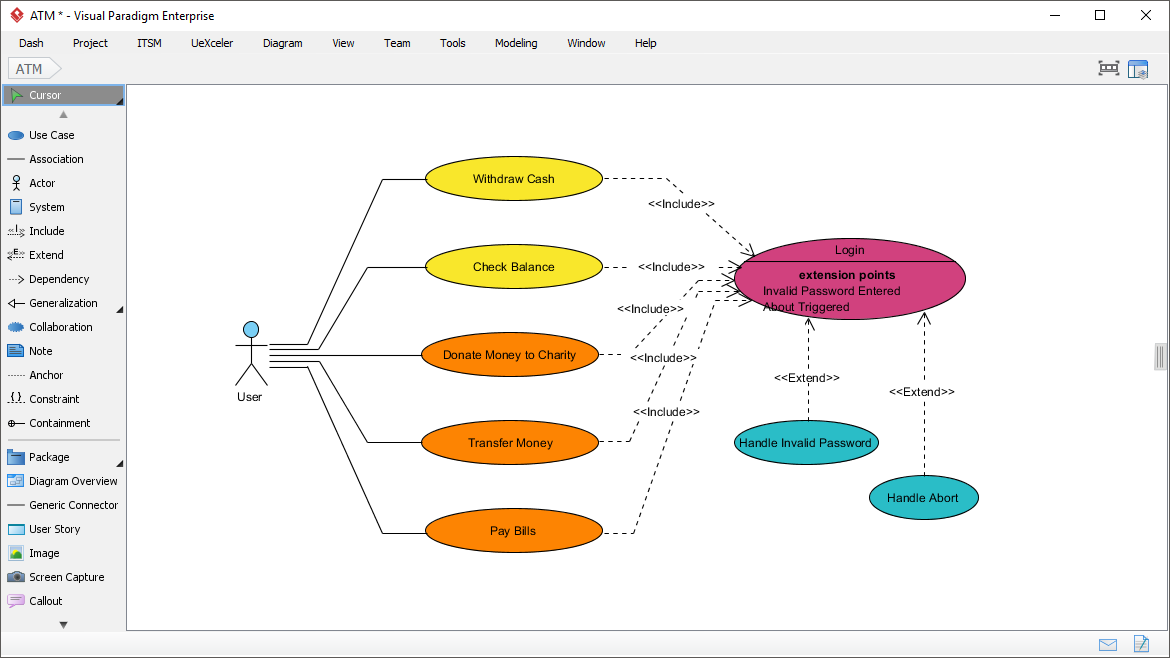
Actors represent the external entities that interact with the system. They are not necessarily people; they can be other systems or hardware devices. In our ATM model, we see the User (a stick figure) representing the Bank Customer. The actor defines the boundary of the system; everything inside the boundary belongs to the system, and everything outside is an actor.
2. Use Cases: The Goals
A use case represents a specific functional goal that a user wants to achieve. These are depicted as ovals. In the diagram, we see high-level business goals such as Withdraw Cash, Check Balance, Transfer Money, Pay Bills, and Donate Money to Charity.
Key Concept: Focus on the “what,” not the “how.” For example, “Enter Password” is a step in the process, not a primary business goal. The goal is “Login.”
Modeling Complex Logic: Include and Extend
The true power of a Use Case Diagram lies in its ability to manage complexity through relationships. Visual Paradigm allows us to model these relationships precisely.
The <> Relationship
Used to factor out common behavior. If multiple use cases share a common sequence of steps, you can extract that sequence into a separate use case and link them with an <
In our ATM model, every action a user takes (Withdraw, Check Balance, Transfer, etc.) requires authentication. Instead of drawing the “Login” logic inside every single use case, we create a Login use case and link all other use cases to it.
Notice the dashed arrow pointing from Withdraw Cash to Login. This indicates that to perform a Withdraw, the system must execute the Login use case. The Login use case is mandatory for the parent use case to complete.
The <> Relationship
Used to define optional behavior or exceptional conditions. An extending use case adds behavior to a base use case under specific conditions.
Look at the Handle Invalid Password and Handle Abort use cases. They are connected to Login with dashed arrows labeled <
Visualizing System Architecture in Visual Paradigm
Visual Paradigm (VP) provides a robust interface for these diagrams. By utilizing the Toolbar on the left, you can drag and drop elements like Actors, Use Cases, and System boundaries. The diagram above demonstrates a clean, hierarchical structure:
- The System Boundary: While not explicitly drawn as a box in this specific view, the grouping of ovals implies the system’s scope.
- Association Lines: Solid lines connecting the User to the primary use cases.
- Dependencies: Dashed lines showing logical dependencies (Include/Extend).
Step-by-Step Modeling Guide
Ready to build your own system architecture? Follow these steps to replicate the ATM logic in Visual Paradigm:
Step 1: Define the Actors
Drag an Actor from the palette onto the canvas. Name it Bank Customer or User.
Step 2: Add Primary Use Cases
Create ovals for the main functions: Withdraw Cash, Check Balance, Transfer Money, Pay Bills, and Donate Money to Charity.
Step 3: Establish the Common Flow (Include)
Create a Login use case. Draw a dashed line from each primary use case to Login. Right-click the line and select Include (or select the relationship type from the context menu).
Step 4: Handle Exceptions (Extend)
Create Handle Invalid Password and Handle Abort use cases. Draw dashed lines from these to the Login use case. Select the Extend relationship type. You may also need to specify the “Extension Point” in the properties panel of the Login use case.
Step 5: Refine and Document
Ensure your diagram is readable. Use the layout tools in Visual Paradigm to automatically arrange the nodes. Add notes if necessary to clarify business rules.
Conclusion
By mastering Use Case Diagrams, you move beyond simple coding and start thinking like a system architect. You define the boundaries of your application, identify the critical user goals, and handle the complex logic of authentication and error handling in a structured way. Whether you are building a banking system or a simple web app, the principles of modeling “Who does What” remain the foundation of successful software development.