
By a Product Documentation Lead Who’s Been There
Introduction: When “Just Share the Doc” Became My Biggest Headache
If you’ve ever managed technical documentation for a growing team, you know the struggle: stakeholders need different versions, clients want read-only access, and your leadership team demands a polished public-facing page—all while you’re trying to keep the master knowledge base secure and up-to-date.
For months, I juggled spreadsheets of share links, outdated PDFs, and frantic Slack messages asking, “Wait, which version did I send you?” Then I discovered two features in Visual Paradigm OpenDocs that completely transformed my workflow: Browse Share History and the new WordPress Page Export.
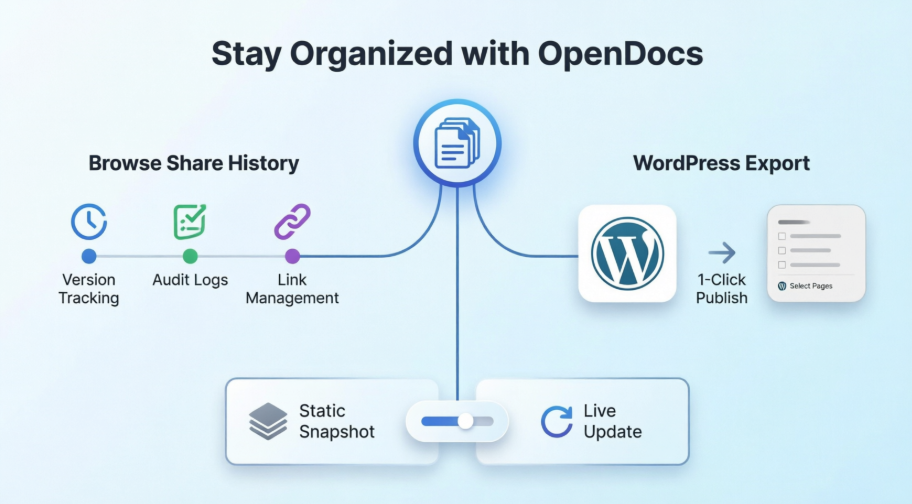
This isn’t a marketing pitch—it’s my honest, hands-on review of how these tools helped me regain control, reduce errors, and actually enjoy sharing documentation again. If you’re evaluating knowledge management platforms or already using OpenDocs but haven’t explored these features, this guide is for you.
Why Share History Became My Secret Weapon
Before OpenDocs, tracking shared documentation felt like detective work. With Share History, I finally have a single dashboard that answers the questions that used to keep me up at night:
-
Who has access to what? I can instantly see which pages were shared, when, and in what format.
-
Which version is live? No more confusion between “the July draft” and “the August final”—each Static Snapshot is clearly labeled and timestamped.
-
What can I retire? Old links for completed projects? I can identify and deactivate them in seconds, reducing security risks.
As someone who values clean workflows, this audit trail isn’t just convenient—it’s essential for compliance and team trust.
My Step-by-Step Walkthrough: Browsing Share History Like a Pro
Accessing Share History takes less than 30 seconds once you know where to look. Here’s exactly how I use it:
-
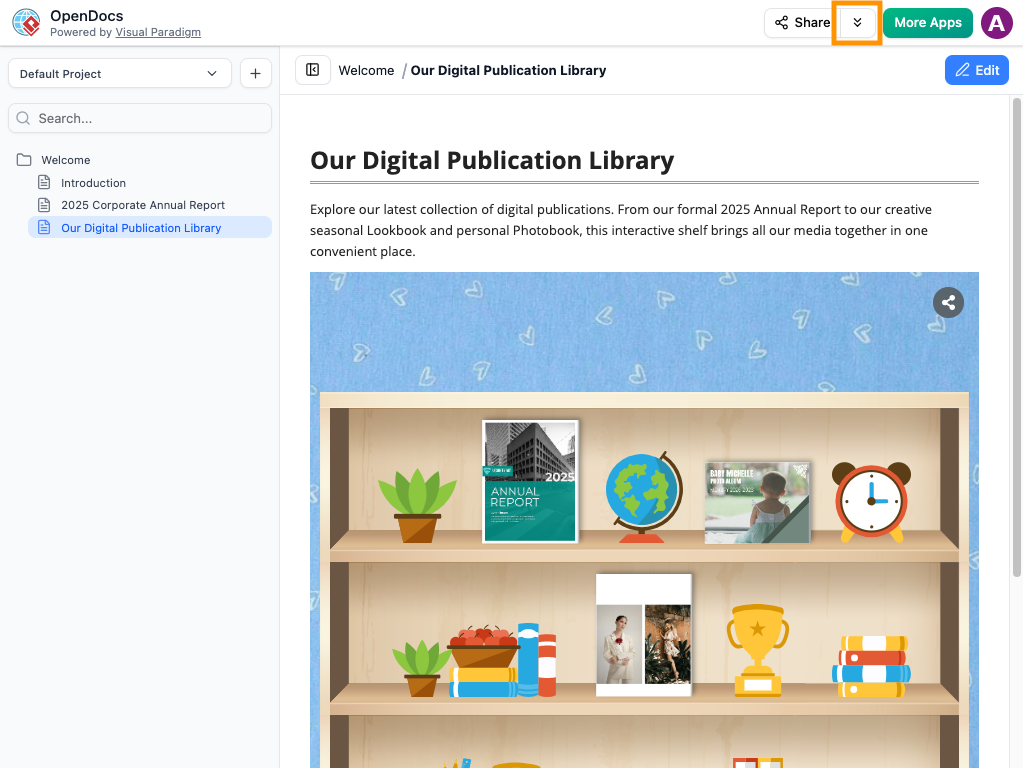
Open the Share Dialog: I click the Share button in the top-right corner of any OpenDocs page.
-
View History: I look for the Browse Share History option within the sharing interface. It’s intuitive—no digging through settings menus.
-
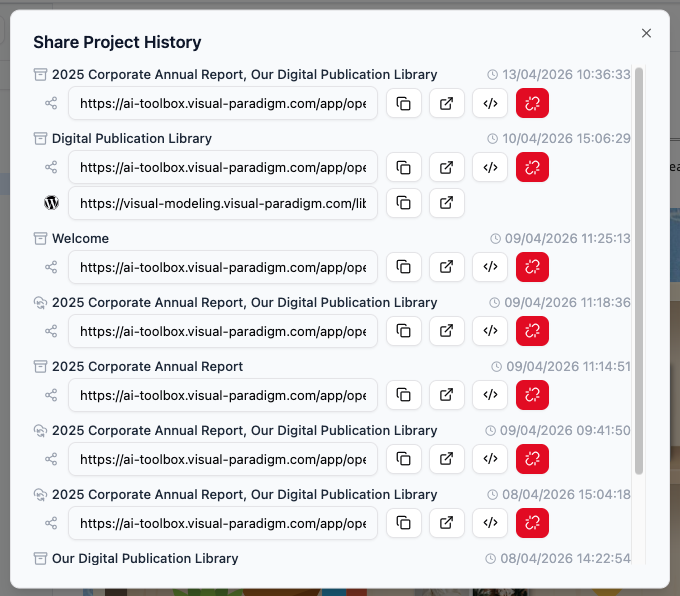
Review Details: This is where the magic happens. I see:
-
Clear descriptions I added when sharing (more on that below)
-
Creation dates and timestamps
-
Whether the share is “Live” (syncs with updates) or “Static” (frozen snapshot)
-
A direct link to the WordPress page if I exported it there
-
-
Manage Links: Need to resend a link? I copy the URL right from this view. Want to embed content elsewhere? I grab the embed code without reopening the original share dialog.
💡 Pro Tip from My Experience: If you use WordPress, skip the manual copy-paste entirely. The direct WordPress export (covered next) saves me at least 15 minutes per publish cycle. Learn more about how to export and publish directly as a WordPress page
The WordPress Export Feature That Changed My Workflow
Here’s the scenario that used to eat my afternoon: Leadership wants a polished, public-facing page showcasing our enterprise architecture blueprints—but they don’t want visitors accessing our internal process notes or draft diagrams.
Previously, I’d export to PDF, manually crop screenshots, and beg our web team to upload everything. With OpenDocs’ WordPress Page Export, I now publish targeted, diagram-rich content in under two minutes.
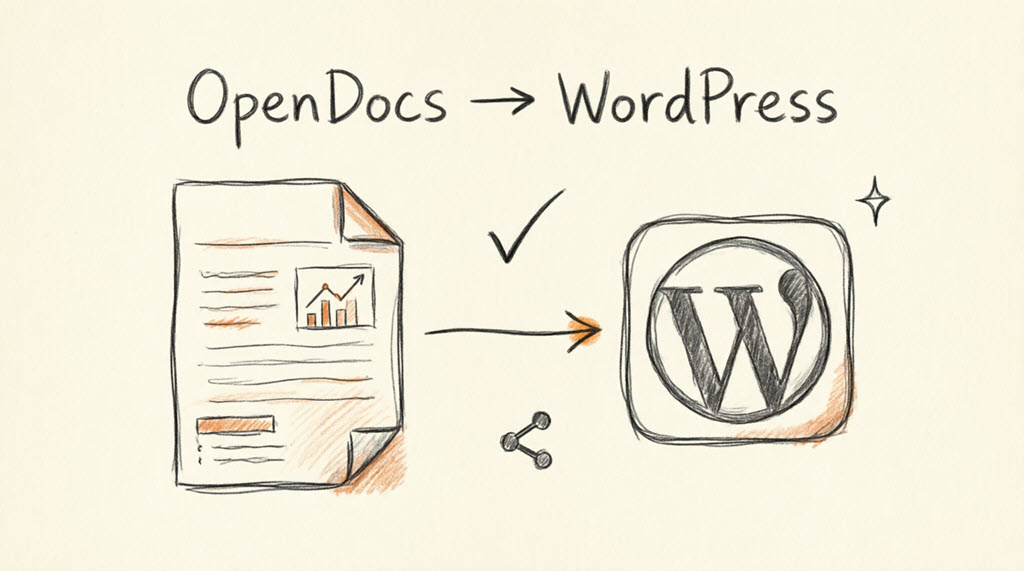
What I love most: I keep my master knowledge base secure in OpenDocs while sharing only the curated subset stakeholders need. No more “oops, I shared the wrong folder” moments.
How I Set Up WordPress Integration (Without the Headaches)
I’ll be honest—I’m not a WordPress developer. But the setup process was surprisingly straightforward. Here’s my real-world walkthrough:
-
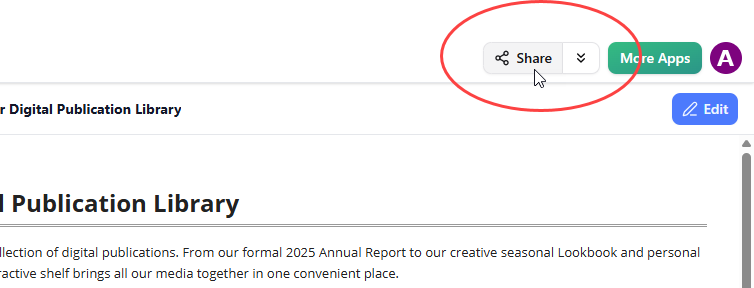
Open your knowledge base in OpenDocs and click Share at the top right.
-
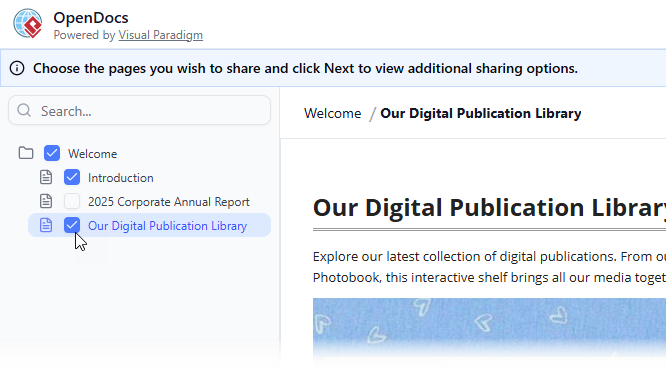
Select only the pages you want to share. I use the left panel checkboxes to include exactly what’s relevant—like my “Q3 Architecture Review” folder while excluding internal notes.
-
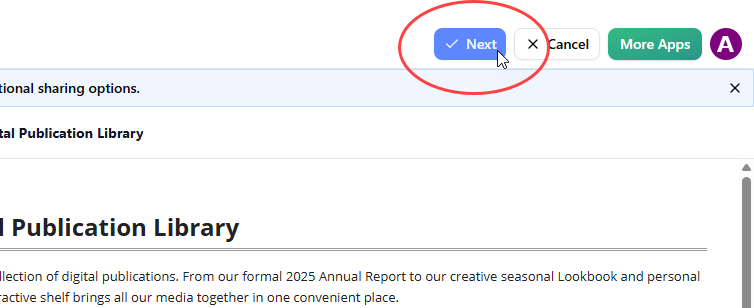
Click Next.
-
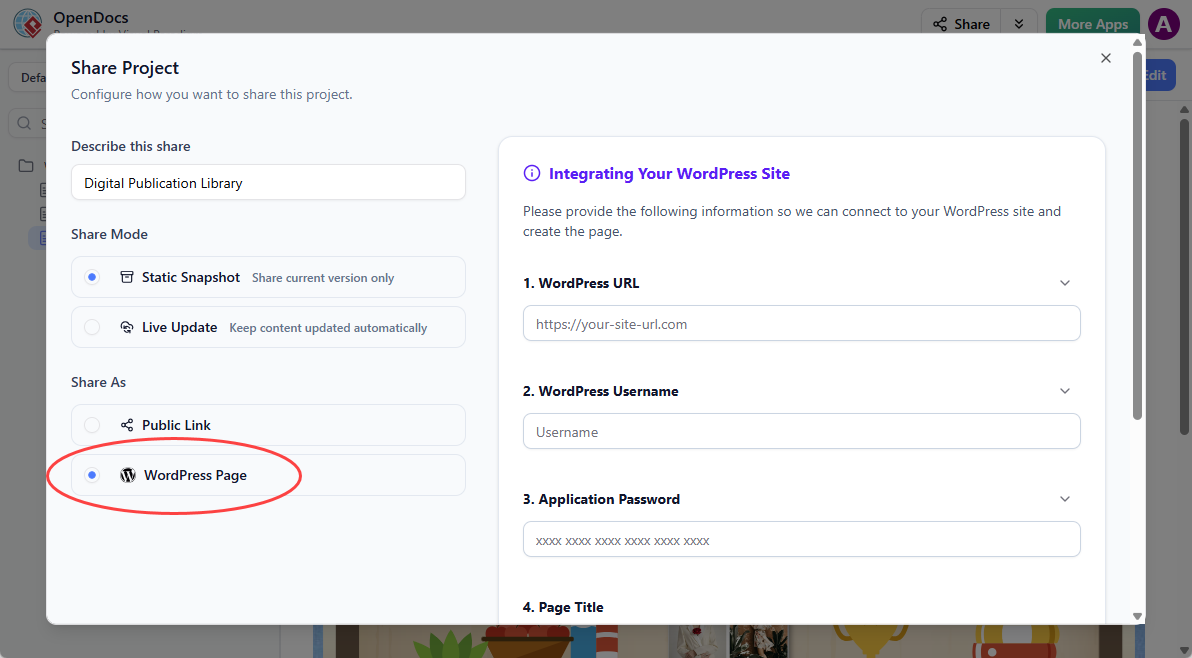
Add a clear description. I write something like “Client-Facing EA Blueprints – October 2026” so my Share History stays readable later.
-
Choose Static or Live mode:
-
Static Snapshot: Perfect for formal releases or compliance docs that shouldn’t change.
-
Live Update: Ideal for collaborative projects where stakeholders need the latest version.
-
-
Under Share As, I select WordPress Page.
-
One-time WordPress setup (took me ~5 minutes):
-
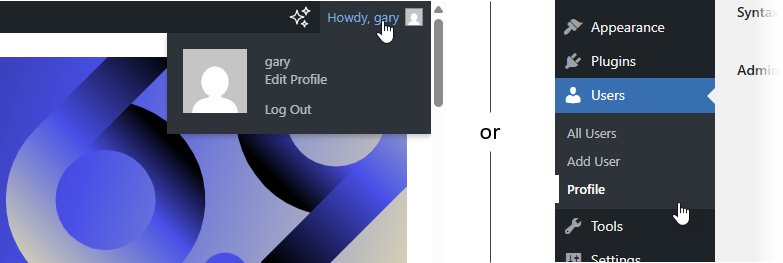
Log into WordPress dashboard → Profile (top-right avatar or Users → Profile)
-
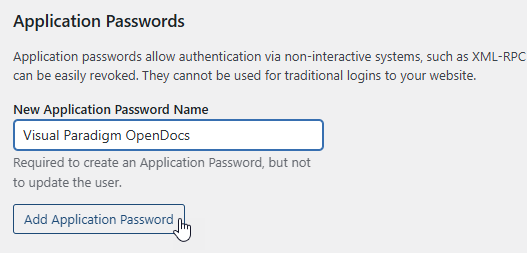
Scroll to Application Passwords
-
Name it “Visual Paradigm OpenDocs” and click Add Application Password
-
Copy the generated password immediately (you won’t see it again!)

-
-
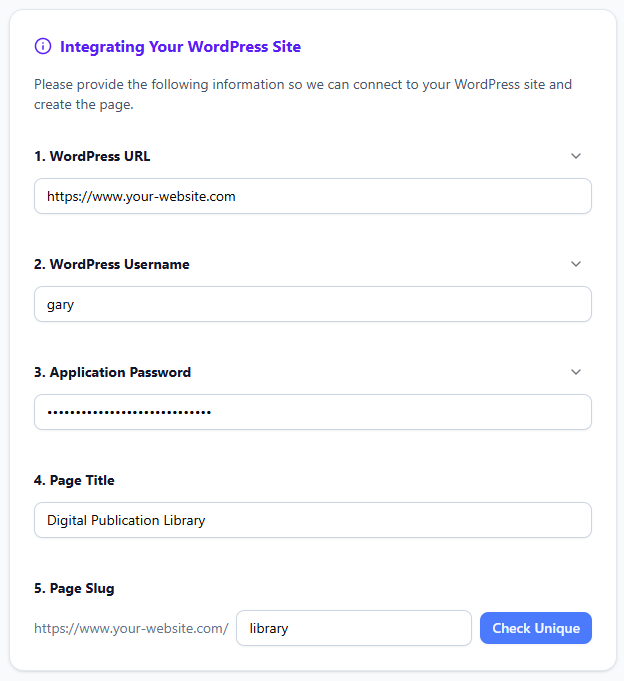
Back in OpenDocs, fill in connection details:
-
WordPress URL, username, and the Application Password you just copied
-
Page title and slug (I use descriptive slugs like “ea-blueprints-q4-2026”)
-
-
Click Check Unique, then Publish to WordPress.

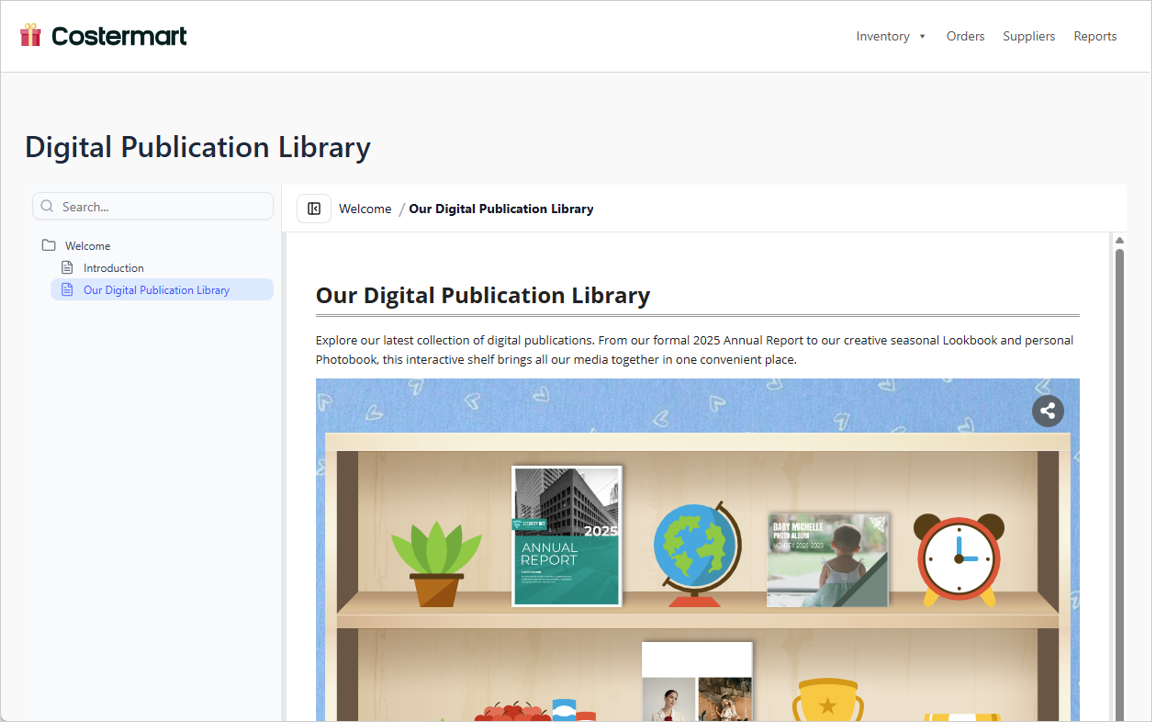
Within seconds, my page is live. I visit the URL to verify, and if needed, I can further customize it in WordPress Admin → Pages.
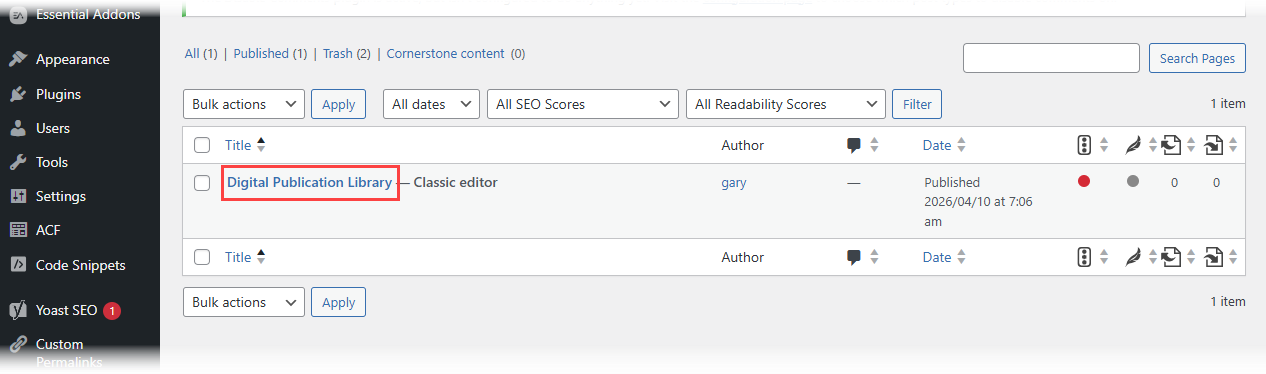
Security note I appreciated: Visual Paradigm never stores my Application Password. I can regenerate it anytime in WordPress if needed.
WordPress Page Export vs. Embed Code: What Actually Worked for Me
OpenDocs also offers an HTML embed code option. After testing both, here’s my practical comparison:
| Feature | WordPress Page Export | HTML Embed Code |
|---|---|---|
| Best for | Dedicated documentation pages | Embedding within existing content |
| Setup time | ~5 minutes one-time | Instant, but requires manual placement |
| Flexibility | Creates a clean, standalone page | Paste anywhere (WordPress, custom sites, etc.) |
| My use case | Client portals, public docs | Adding diagrams to blog posts or internal wikis |
Both support page selection and Static/Live modes, so I choose based on the audience. For focused stakeholder updates? WordPress Page Export. For sprinkling diagrams into a larger article? Embed code.
My Top Tips for Keeping Everything Organized
After three months of daily use, these habits have saved me hours:
✅ Use descriptive share titles: “Internal HR Policy – July Update” is infinitely more useful than “Share #47” when reviewing history later.
✅ Schedule monthly cleanup: I block 15 minutes on the first Monday of each month to review Share History and retire outdated links.
✅ Leverage Static mode for milestones: When we finalize a project phase, I publish a Static Snapshot. It becomes our “official record” while the Live version continues evolving.
✅ Start small with WordPress: My first export was just three pages. Once I saw how clean the output was, I expanded to larger sections.
✅ Document your workflow: I keep a simple internal note with my WordPress setup steps. New team members can publish independently now.
Conclusion: Why These Features Earned a Permanent Spot in My Toolkit
As someone who’s tested dozens of knowledge management tools, I’m selective about what stays in my workflow. OpenDocs’ Browse Share History and WordPress Export didn’t just solve immediate problems—they changed how I think about documentation sharing.
Who should care about these features?
-
Technical writers managing multi-stakeholder projects
-
Product teams needing secure, versioned documentation shares
-
Consultants who deliver polished client-facing materials
-
Anyone tired of manual screenshot-and-PDF workflows
What I’d love to see next: Bulk link management in Share History and more WordPress theme customization options. But even today, these tools deliver exceptional value.
If you’re drowning in documentation chaos or simply want to share knowledge more intentionally, I encourage you to try these features. For me, they turned a stressful, error-prone process into a streamlined, confident workflow—and that’s worth sharing.
Happy documenting!
References
- Visual Paradigm OpenDocs Features: Official overview of OpenDocs capabilities including diagramming, AI assistance, and sharing tools.
- Visual Paradigm OpenDocs: The Complete Guide to AI-Powered Knowledge Management: In-depth third-party guide covering setup, workflows, and advanced use cases for OpenDocs.
- Visual Paradigm OpenDocs: The Complete Developer’s Guide: Developer-focused resource detailing API integrations, Markdown workflows, and technical documentation best practices.
- Mastering the Visual Paradigm AI Ecosystem: Comprehensive exploration of Visual Paradigm’s AI tools, including OpenDocs’ diagram generation and content automation features.
- OpenDocs – AI-Powered Knowledge Management Platform: Official product page with feature highlights, use cases, and access to start using OpenDocs.
- OpenDocs AI-Powered Knowledge Platform Release: Announcement and details of OpenDocs’ core platform launch and foundational capabilities.
- From Model to Manual: Syncing Desktop Diagrams with OpenDocs: Practical tutorial on using the Visual Paradigm Pipeline to keep desktop diagrams synchronized with OpenDocs knowledge bases.
- Fliplify French Resource: French-language resource hub for Visual Paradigm tools and documentation workflows.
- Mastering Visual Paradigm OpenDocs: The Ultimate Guide: Expert walkthrough of OpenDocs’ knowledge tree organization, AI features, and Pipeline integration for living documentation.
- OpenDocs Page-Based Sharing Update: Release notes detailing granular page selection and sharing controls in OpenDocs.