
Mastering VPasCode: A Practical UML Workflow for Visual Paradigm
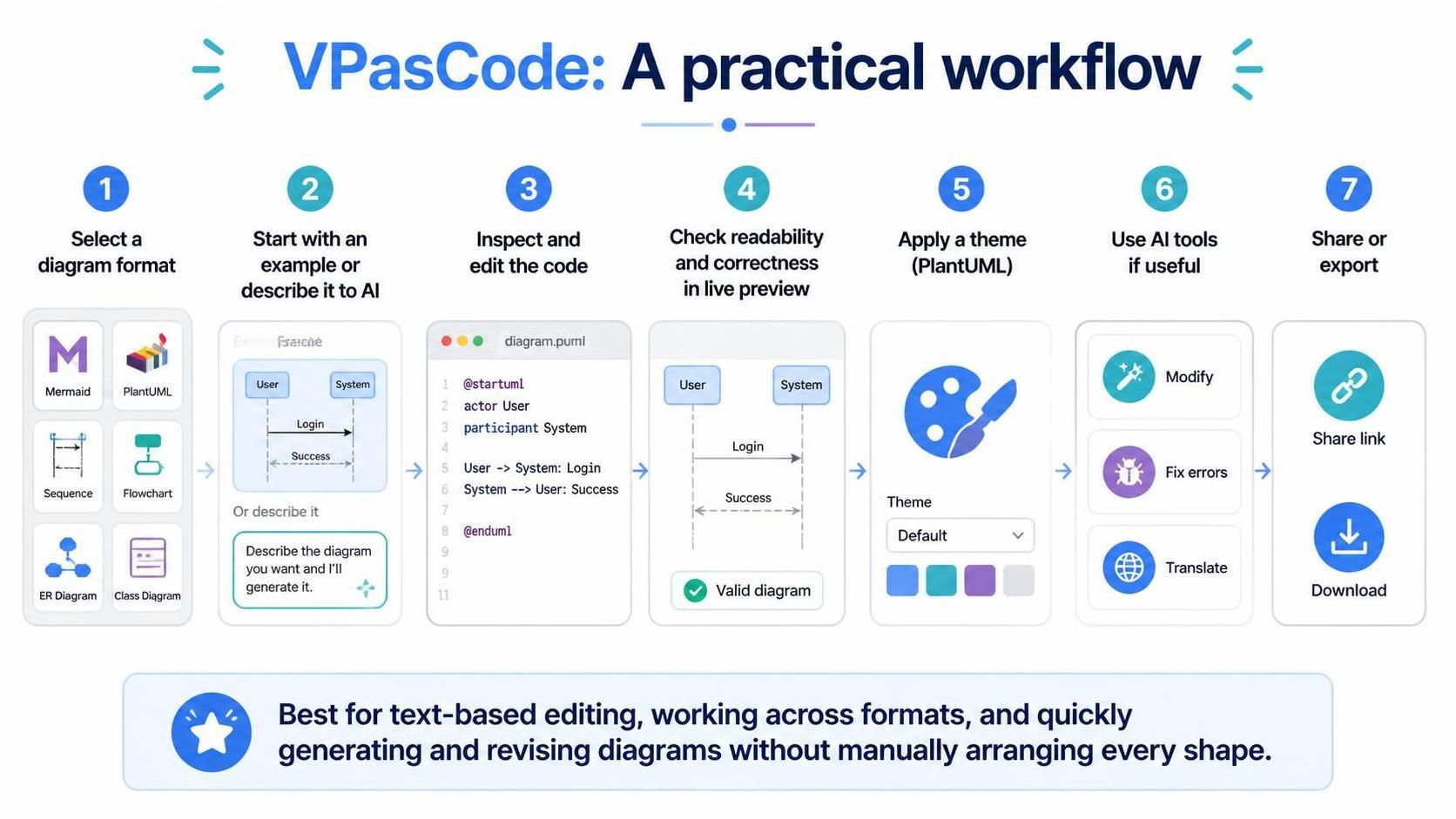
In the modern era of software architecture and technical documentation, the ability to visualize complex systems quickly is paramount. However, traditional drag-and-drop tools often become bottlenecks when rapid iteration is required. This is where VPasCode shines, offering a paradigm shift toward text-based diagramming that leverages the speed of code and the intelligence of AI.
This tutorial walks you through the seven-step practical workflow of VPasCode, transforming how you create, refine, and share technical diagrams.
Step 1: Selecting the Right Visualization Language
The foundation of any technical diagram is the language used to describe it. VPasCode supports a variety of syntaxes, ensuring you can choose the tool that best fits your specific modeling needs. Whether you are a developer preferring Markdown-friendly syntax or an engineer relying on industry standards, the platform adapts to you.
- Mermaid: Ideal for flowcharts and sequence diagrams with a syntax that is easy to embed in documentation (like GitHub READMEs).
- PlantUML: The powerhouse for UML diagrams, including Class, Sequence, and State diagrams.
- Sequence: Specialized syntax for visualizing interaction flows between actors and systems.
- Flowchart: For general process mapping and logic visualization.
- ER Diagram: Essential for database schema design and entity relationships.
Step 2: Rapid Generation via AI or Templates
One of the most significant productivity gains comes from Step 2. Instead of manually drawing boxes and arrows, VPasCode offers two streamlined entry points:
- Start with a Built-in Example: If you are exploring a new diagram type, start with a pre-configured template. This provides a skeleton that you can immediately populate with your specific data.
- Describe it to the AI: This is the “killer feature.” You can simply type a natural language description of the diagram you need. For example, you might type, “A sequence diagram showing a user logging in and receiving a success message.” The AI parses this intent and generates the underlying code instantly.
Step 3: Inspecting and Editing the Code
Once the code is generated, you are not locked into a “black box” solution. VPasCode exposes the raw code, allowing for granular control. This step bridges the gap between AI automation and developer precision.
You can manually tweak the generated code to add specific styling, change component IDs, or adjust logic that the AI might have generalized. This “Inspect and Edit” capability ensures that your diagram is technically accurate and adheres to your organization’s specific notation standards.
Step 4: The Live Preview Loop
Text-based diagramming can sometimes lead to “syntax blindness,” where errors in the code result in broken or missing elements in the visual output. VPasCode mitigates this with a Live Preview mechanism.
As you edit the code, the visual representation updates in real-time. This allows you to:
- Verify readability: Ensure the layout flows logically from left to right or top to bottom.
- Check correctness: Confirm that all relationships and arrows point to the intended targets.
- Debug instantly: If a line is missing or a box is misaligned, you can immediately spot the error in the code view.
Step 5: Thematic Customization (PlantUML)
While functionality is key, presentation is what communicates effectively. For users working within the PlantUML ecosystem, VPasCode allows you to apply Themes seamlessly.
Instead of manually defining colors, fonts, and border styles for every element, you can select a theme preset. This ensures a consistent aesthetic across your documentation and saves significant time on styling. Whether you need a clean, corporate look or a vibrant, creative style, the theme application is a single-click operation.
Step 6: Leveraging AI Assistance
The workflow doesn’t end at generation. As your diagram grows in complexity, you may encounter specific challenges. VPasCode integrates AI tools to assist with:
- Modification: Ask the AI to “add a failure path” or “group these three components together,” and it will update the code for you.
- Error Correction: If the syntax is invalid or the diagram fails to render, the AI can analyze the error and suggest the fix.
- Translation: Need to share your diagram with an international team? The AI can translate the text labels within the diagram into different languages.
Step 7: Sharing and Exporting
The final step is distribution. VPasCode removes the friction of exporting images or PDFs. You can:
- Share a Link: Generate a shareable URL so stakeholders can view the interactive diagram in their browser without needing any software.
- Download: Export the final asset in standard formats (like PNG or SVG) for inclusion in reports, slide decks, or printed documentation.
Conclusion
The VPasCode workflow represents a shift away from manual, tedious diagramming toward a fluid, text-driven process. By combining the speed of AI generation with the precision of code editing and the convenience of live previews, it is the ideal solution for developers and architects who need to generate and revise diagrams rapidly.