


Creating clear, accurate use case diagrams is essential for defining system requirements, aligning stakeholders, and guiding development teams. Traditionally, this process involves time-consuming drafting, iteration, and expert-level UML knowledge. With Visual Paradigm’s AI Chatbot and its AI-Powered Use Case Refinement Tool, generating professional-grade use case diagrams has become faster, more intuitive, and accessible—even for non-experts.
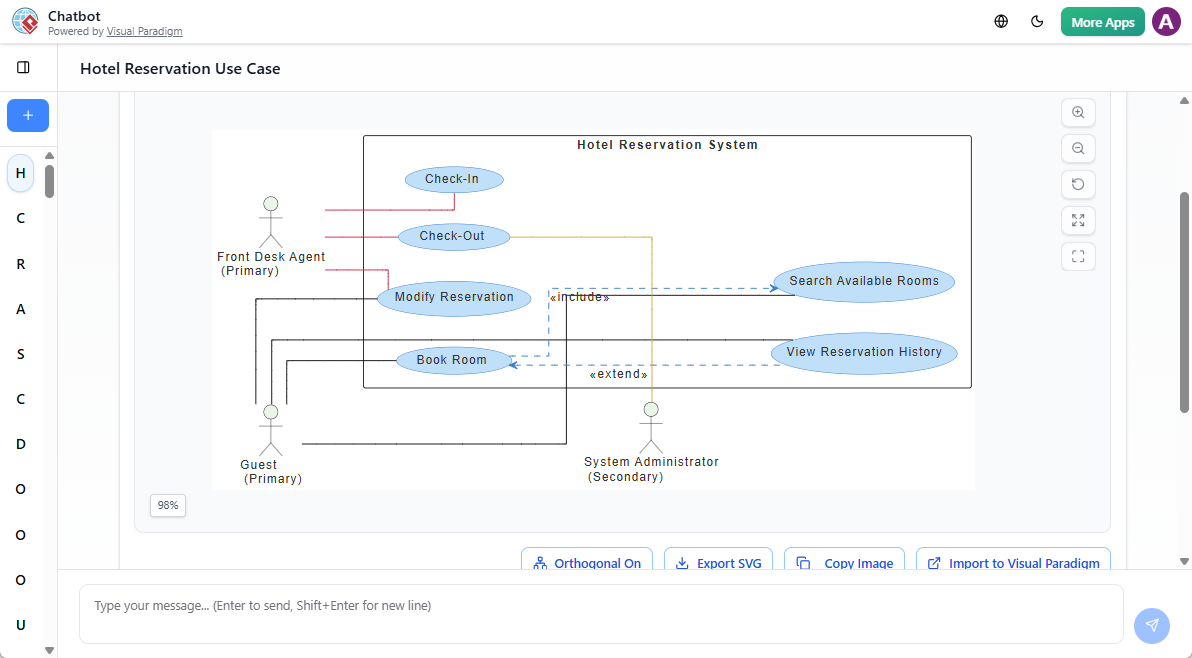
This guide walks you through the complete workflow, from initial prompt to final diagram export, while highlighting recent AI-driven enhancements that make Visual Paradigm a leading choice for modern software modeling.
🎯 Why Use AI for Use Case Diagrams?
Use case diagrams visualize interactions between system actors (users, external systems) and core functionalities. When done well, they clarify system scope, identify edge cases, and serve as a foundation for documentation and development.
Manual creation often leads to inconsistencies, missing relationships, or oversimplified models. AI integration helps overcome these challenges by interpreting natural language, suggesting best practices, and automatically applying UML standards like <<include>> and <<extend>>.
Visual Paradigm’s AI tools are designed not just to generate diagrams, but to collaborate with users—offering real-time feedback, prompting for clarification, and refining models iteratively.
✅ Step-by-Step: Create a High-Quality Use Case Diagram
1. Describe Your System in Plain Language
Open the AI Chatbot in Visual Paradigm (available in both desktop and cloud versions). Instead of drawing, describe your system using natural language. Be specific about:
- Key actors (e.g., Member, Librarian, Admin)
- Core functions (e.g., borrow book, return book, manage inventory)
- Special behaviors (e.g., late fee processing, search by title)
Example prompt:
“Design a use case diagram for a library management system. Include actors: Member, Librarian, and System Admin. Primary use cases: borrow book, return book, search catalog, manage book inventory, issue late fee. Add authentication as a shared sub-flow.”
The AI instantly parses this and generates a visual preview of actors and use cases.
2. Refine with Conversational Commands
Don’t expect perfection on the first try. The AI Chatbot supports natural language refinement—you can adjust the diagram in real time using simple commands:
- “Add a ‘pay late fee’ use case linked to ‘issue late fee’.”
- “Rename ‘Librarian’ to ‘Library Administrator’.”
- “Make ‘authenticate user’ an include relationship for all login-related use cases.”
This back-and-forth interaction mimics a design review session, helping you explore different modeling approaches without switching tools.
3. Use the AI-Powered Refinement Tool
Once the basic structure is in place, click “Refine Diagram with AI”. This feature analyzes the diagram and:
- Identifies common sub-flows (e.g., login, validation) and applies
<<include>>relationships. - Detects optional or conditional behaviors and adds
<<extend>>links. - Suggests missing use cases based on typical system patterns.
For example, the AI might detect that “return book” requires “validate return eligibility” and automatically insert that as an include. This ensures your diagram follows UML best practices and avoids common modeling gaps.
4. Import into Your Project for Further Work
After refinement, click “Import to Visual Paradigm” to bring the diagram into your project workspace. From there, you can:
- Edit shapes, labels, and layout manually.
- Generate documentation or code skeletons (Java, C#, etc.).
- Link use cases to other UML diagrams (e.g., sequence diagrams).
- Share with teammates via collaborative workspace.
The diagram remains fully editable—AI is a co-pilot, not a replacement.
🚀 Recent AI Enhancements (2025–2026)
Visual Paradigm has accelerated its release cycle with AI at the core. These updates reflect a shift from basic diagram generation to intelligent, context-aware modeling:
🧠 AI Use Case Modeling Studio (Jan 2026)
A guided interface where the AI asks targeted questions to build complete use case suites. For example:
“Who performs the ‘manage inventory’ function?”
“Should ‘pay late fee’ only be available after a book is overdue?”
This structured approach ensures comprehensive coverage and reduces omissions.
🔄 Enhanced State Machine & C4 Diagrams (Feb 2026)
AI now handles complex state transitions (e.g., “book status: available → borrowed → overdue”) and generates full C4 models (Context, Container, Component) from text. This allows you to model both functional behavior and system architecture in one flow.
📚 AI-Powered OpenDocs (2026)
Integrate AI-generated diagrams into living documentation. Changes to the model automatically update linked documents—ideal for agile teams maintaining up-to-date requirements.
📝 Textual Analysis App (Aug 2025)
Extract UML class diagrams directly from textual descriptions (e.g., user stories or functional specs). This bridges the gap between requirements and design, enabling faster iteration.
☁️ Cloud Infrastructure Planning (Feb 2026)
Generate cloud architecture diagrams (AWS, Azure, GCP) using natural language. Describe your deployment needs—e.g., “host a web app with auto-scaling and database replication”—and the AI produces a visual infrastructure plan.
🛠️ Best Practices for Better Results
- Be specific in your prompts. Instead of “a banking app,” say: “a mobile banking app with login, balance check, fund transfer, and transaction history.”
- Use domain-specific terms. Mentioning “OAuth2” or “two-factor authentication” helps the AI apply correct relationships.
- Leverage the refinement tool after every draft. It catches subtle modeling issues you might miss.
- Combine AI with manual review. Always validate the output against your system’s actual behavior.
💡 Real-World Example: E-Commerce System
Try this prompt for an online store:
“Create a use case diagram for an e-commerce platform. Actors: Customer, Admin, Payment Gateway. Use cases: browse products, add to cart, checkout, process payment, manage orders, view order history, update inventory. Ensure ‘process payment’ includes ‘validate card’ and ‘confirm transaction’ as sub-flows.”
The AI will generate a structured diagram with proper <<include>> and <<extend>> relationships. You can then refine it further—e.g., “Add ‘apply discount code’ as an extend to checkout.”
🔗 Final Thoughts
Visual Paradigm’s AI tools are not a shortcut—they’re a collaborative modeling partner. They reduce friction in the early design phase, help maintain consistency, and support learning through instant visualization and feedback.
Whether you’re a student learning UML, a business analyst defining requirements, or a developer aligning with stakeholders, these tools make it easier to create diagrams that are both accurate and meaningful.
For those exploring UML, the AI Chatbot serves as an interactive learning environment—offering immediate feedback and real-world examples without the need for formal training.
✅ Pro Tip: Use the AI to generate a draft, then manually review it against your domain knowledge. This hybrid approach ensures both speed and accuracy.
Suggested Next Steps
- Try generating a diagram for your current project using a real-world prompt.
- Explore the AI Use Case Modeling Studio for a guided experience.
- Integrate diagrams into OpenDocs for dynamic documentation.
With continuous updates and a focus on usability, Visual Paradigm remains at the forefront of AI-augmented software modeling.